
Published: 23 September 2026
Last updated: 23 September 2026
Last checked: 23 September 2026
Reviewed by / Author: Godwin Samuel, Founder and Publisher, DPSACircular.co.za
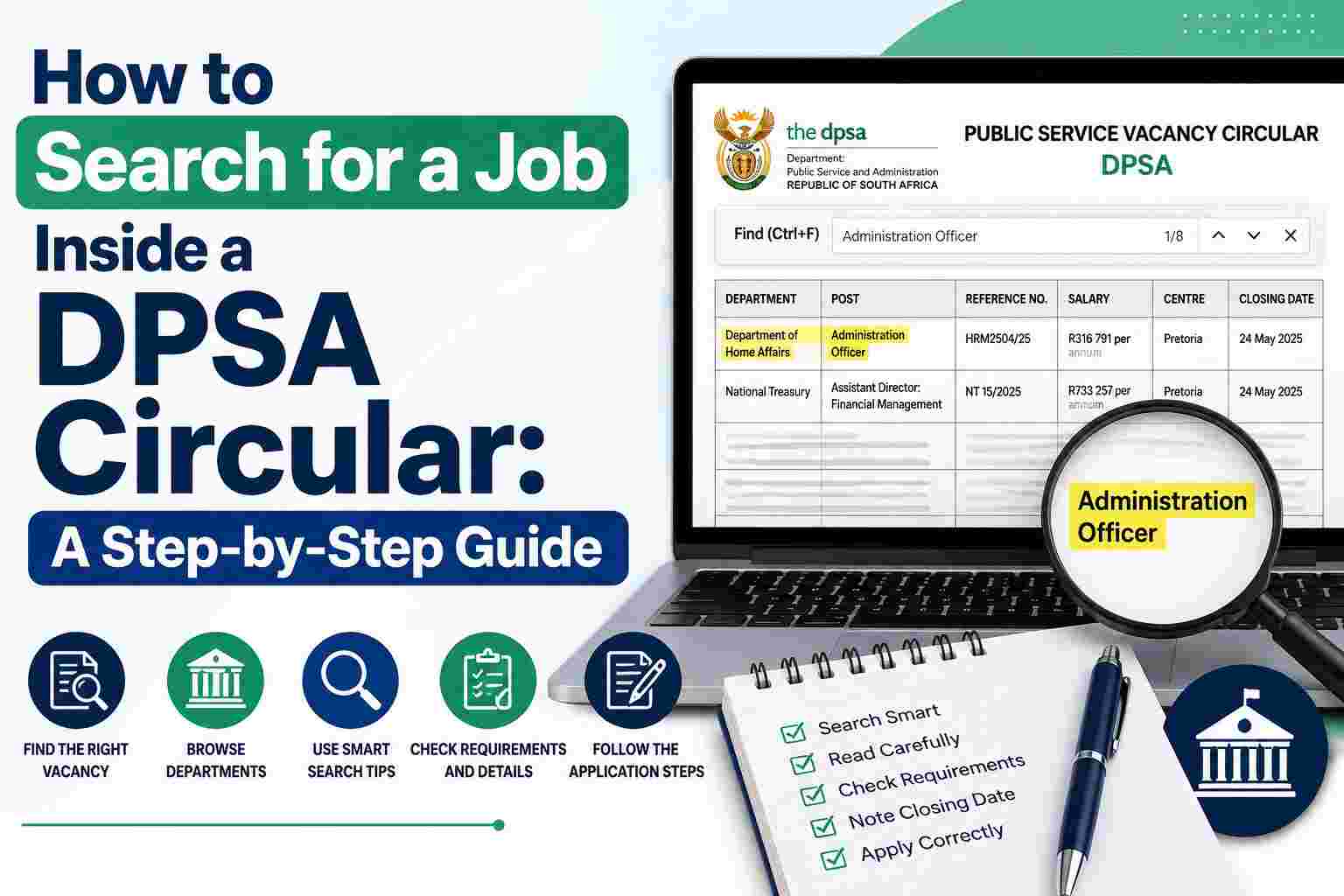
Searching for a government job inside a DPSA Vacancy Circular becomes much easier when you know how to use the PDF search function and how to check the information around each result.
A DPSA Circular contains advertisements for vacant posts and jobs in South African public service departments. The official DPSA website states that the circular is generally published weekly, except during December. The Department of Public Service and Administration issues the circular, while individual departments are responsible for the content of their own advertisements.
A single circular might contain a large number of vacancies. Reading every page from the beginning is unnecessary when you already know the department, job title, qualification, location or reference number you want.
This guide shows you how to search a DPSA Circular efficiently, how to identify suitable vacancies, how to verify the information before applying and how to avoid common mistakes.
Quick Answer: How Do You Search for a Job Inside a DPSA Circular?
Open the official DPSA Circular PDF and use the search function.
On Windows:
Ctrl + F
On Mac:
Command + F
Then search for a relevant term such as:
- Department name
- Job title
- Reference number
- Qualification
- Province
- City
- Salary level
- Grade 12
- Closing date
- Requirements
- Duties
- Applications
When you find a possible vacancy, do not stop at the search result. Read the complete advertisement and verify the requirements, duties, reference number, location, closing date and application instructions.
What Is a DPSA Vacancy Circular?
A DPSA Vacancy Circular is an official publication containing advertisements for vacant posts and jobs in public service departments.
The official DPSA website provides individual circular pages where you can view the circular number, posting date and full document. For example, DPSA Circular 26 of 2026 was posted on 24 July 2026.
The departments included in a circular change from one edition to another.
This means you should check the specific circular rather than assume a particular department appears in every edition.
Why PDF Search Is the Fastest Way to Find a Vacancy
A DPSA Circular is designed as a large document containing multiple vacancy advertisements.
If you are looking for one particular position, manually scrolling through every page takes longer and increases the chance of overlooking the job.
The PDF search function lets you move directly to words and phrases appearing in the document.
For example, suppose you want a job at the Department of Home Affairs.
Instead of reading the entire PDF, search:
Home Affairs
You can then review the relevant results and move to the department’s vacancy section.
If you are looking for an Administrative Clerk, search:
Administrative Clerk
If you already have the reference number, search the reference number instead.
Step 1: Find the Correct DPSA Circular
Start with the official DPSA Public Service Vacancy Circular page.
Check:
- Circular number
- Posting date
- Full document
- Departments included
- Provincial administrations included
The official DPSA circular page provides directions for viewing vacancies by selecting the relevant department or administration.
Do not rely on a third-party website to determine whether a circular is current.
Third-party job websites, social media pages and WhatsApp groups might help you find opportunities, but you should verify vacancy information against the official circular.
Step 2: Open or Download the PDF
Once you locate the circular, open the full PDF.
You have two practical options.
Open the PDF in Your Browser
Browsers such as Chrome and Microsoft Edge support PDF viewing.
Open the circular and use the built-in search function.
Download the PDF
Downloading the circular gives you a copy for later reference.
You might save the document as:
DPSA Circular 26 of 2026.pdf
Keeping the circular helps you return to the original vacancy advertisement while preparing your application.
Step 3: Use Ctrl + F to Search the Circular
On a Windows computer, press:
Ctrl + F
On a Mac, press:
Command + F
A search box appears.
Type your keyword.
For example:
Home Affairs
The PDF viewer highlights matching results.
Use the arrows beside the search box to move through each result.
This method works well for large vacancy circulars because you do not need to scroll through every page manually.
Step 4: Search for the Department Name
If you already know where you want to work, start with the department name.
Examples include:
- Department of Home Affairs
- Department of Correctional Services
- Department of Higher Education and Training
- Department of Employment and Labour
- Department of Agriculture
- Department of Transport
- Department of Water and Sanitation
- Department of Defence
- Department of Forestry, Fisheries and the Environment
Search using the department’s full name first.
If the search produces no useful result, try a shorter version.
For example:
Higher Education
instead of:
Department of Higher Education and Training
Step 5: Search for Your Job Title
After identifying the department, search for your preferred job title.
Examples:
- Administrative Clerk
- Cleaner
- Driver
- General Worker
- Human Resource Clerk
- Data Capture Clerk
- Financial Clerk
- Security Officer
- Assistant Director
- Deputy Director
- Accountant
- Information Technology Technician
Use the exact wording where possible.
If your preferred job title produces no result, try related occupational terms.
Step 6: Search Alternative Job Titles
Government departments do not always use the same terminology as private employers.
For example, you might search:
HR Clerk
and find nothing.
Try:
Human Resource Clerk
You might search:
IT Technician
and find no result.
Try:
Information Technology
or:
ICT
Other useful alternatives include:
| Your Search | Try These Terms |
|---|---|
| Admin | Administration, Administrative |
| HR | Human Resource, Human Resources |
| IT | Information Technology, ICT |
| Finance | Financial, Accounting |
| Procurement | Supply Chain Management |
| Receptionist | Registry, Frontline, Administration |
| Driver | Motor Vehicle Driver |
| Cleaner | Cleaning, General Worker |
| Computer | Information Technology, ICT |
The purpose of these searches is to locate potentially relevant advertisements. You still need to read each vacancy’s requirements before deciding whether you qualify.
Step 7: Search for the Reference Number
The reference number is one of the most efficient search terms.
If someone gives you a reference number for a DPSA vacancy, enter the complete number into the PDF search box.
For example:
Reference Number: ABC/123/2026
Search:
ABC/123/2026
This should take you to occurrences of the reference number.
Record the reference number when you find the vacancy.
You should use the exact reference number stated in the advertisement when the application instructions require one.
Step 8: Search by Qualification
You might not know the exact job title you want.
Your qualification provides another way to search.
Try terms such as:
- Grade 12
- Senior Certificate
- NQF Level 4
- Diploma
- National Diploma
- Degree
- Bachelor’s Degree
- Public Management
- Public Administration
- Accounting
- Human Resources
- Information Technology
- Computer Science
- Social Work
- Law
- Engineering
For example, a Grade 12 job seeker might search:
Grade 12
Then review the results.
Do not treat a matching qualification keyword as proof of eligibility.
Read the complete minimum requirements.
Step 9: Search for Grade 12 Jobs
If you have Grade 12 and want entry-level government positions, search:
Grade 12
You could also try:
Senior Certificate
or:
NQF Level 4
Potential results might include administration, support, clerical, security, transport or other positions.
Each vacancy has its own requirements.
Some positions requiring Grade 12 also require experience, licences, competencies or additional conditions.
Step 10: Search by Province
Location is important when you want to work close to home.
Search for the province.
Examples:
- Gauteng
- KwaZulu-Natal
- Limpopo
- Mpumalanga
- Eastern Cape
- Western Cape
- Free State
- North West
- Northern Cape
You could then narrow the search using your job title.
For example:
Gauteng
followed by:
Administrative Clerk
Remember that province names appear in many parts of a circular. Always check the specific vacancy location.
Step 11: Search by City or Town
You can also search for a specific location.
Examples:
- Pretoria
- Johannesburg
- Durban
- Cape Town
- Polokwane
- Mbombela
- Gqeberha
- Bloemfontein
- Mahikeng
- Kimberley
A location keyword does not automatically mean the vacancy is based there.
Read the centre, office, municipality or other location information within the advertisement.
Step 12: Search for Salary Levels
You can search for:
Salary Level 5
or:
Salary Level 6
and so on.
Salary level searches help you find advertisements within a particular salary range.
Do not select a position based only on salary.
Check:
- Qualification
- Experience
- Duties
- Competencies
- Location
- Application requirements
The advertisement should be your source for the salary attached to the specific post.
Step 13: Search for “Closing Date”
Search:
Closing Date
This phrase appears throughout many advertisements.
Once you locate a vacancy, look for its specific closing date.
Do not use a closing date from an unrelated advertisement.
Also avoid relying solely on an old social media post or third-party article.
Verify the deadline against the official advertisement.
Step 14: Search for “Requirements”
Search:
Requirements
or:
Minimum Requirements
Read the complete section.
Check:
- Qualification
- Experience
- Skills
- Competencies
- Knowledge
- Professional registration
- Driver’s licence
- Other conditions
A job title that sounds suitable does not mean you meet the requirements.
Your decision should come from the complete advertisement.
Step 15: Search for “Duties”
Search:
Duties
The duties section explains the work attached to the post.
Read the duties before applying.
Ask yourself:
- Do my skills match the work?
- Do I have the required experience?
- Do I understand the responsibilities?
- Does the position fit my career plans?
This step helps you avoid applications based only on the job title.
Step 16: Search for “Competencies”
Search:
Competencies
Some government vacancies list competencies alongside qualifications and experience.
Review the complete competency section.
Look for requirements involving:
- Communication
- Computer skills
- Planning
- Organising
- Problem-solving
- Teamwork
- Financial management
- Project management
- Customer service
Do not copy competencies into your CV without evidence from your actual experience.
Step 17: Search for “Applications”
Search:
Applications
You can also search:
How to Apply
This is one of the most important sections.
The vacancy should explain how applicants need to submit applications.
The process differs between advertisements.
Follow the instructions attached to the vacancy you want.
Do not assume every department uses the same email address or application process.
Step 18: Check the Z83 Requirement
Many public service vacancies require the Z83 application form.
Check the specific advertisement for the current instructions.
Where a Z83 is required, complete the form accurately and provide the information requested.
Do not submit an incomplete form.
Check:
- Personal information
- Position applied for
- Reference number
- Qualifications
- Experience
- Training
- Skills
- Declaration
- Signature
The current official circular should guide you on the applicable Z83 requirements.
Step 19: Check the CV Requirements
Read the CV instructions carefully.
An advertisement might request an updated or detailed CV.
Your CV should accurately show information such as:
- Education
- Qualifications
- Employment history
- Relevant duties
- Skills
- Training
- Contact details
- Referees where requested
Do not invent experience or qualifications to match the advertisement.
Step 20: Check Document Requirements
Read the advertisement before attaching supporting documents.
Some vacancies require particular documents at application stage.
Other advertisements state that shortlisted candidates must provide certified copies or additional documents later.
Do not send unnecessary personal documents simply because another vacancy requested them.
Follow the instructions for the specific position.
Step 21: Search for “Enquiries”
Search:
Enquiries
This section provides contact information for questions about the advertised vacancy.
Use the contact information provided in the individual advertisement.
The official DPSA website specifically states that enquiries about an advertisement should be addressed to the relevant advertising department.
This distinction matters because the DPSA issues the circular, while the individual department handles its vacancy.
Step 22: Search for “Note”
Search:
NOTE
Important instructions sometimes appear in notes within vacancy advertisements.
Check for information about:
- Application documents
- Multiple applications
- Shortlisting
- Interviews
- Assessments
- Certification
- Foreign qualifications
- Late applications
- Communication with applicants
Never skip a note simply because you already found the job title and salary.
How We Recommend Searching a DPSA Circular
At DPSACircular.co.za, a useful vacancy search process should follow the information back to the source document.
When preparing a vacancy guide, use this order:
- Identify the relevant circular.
- Confirm the circular number.
- Confirm the publication date.
- Locate the department.
- Locate the vacancy.
- Record the job title.
- Record the reference number.
- Check the salary.
- Check the location.
- Read the requirements.
- Read the duties.
- Check the application instructions.
- Check the closing date.
- Check the enquiry details.
- Compare the published information with the official circular.
- Update the article when official information changes.
This process helps keep job information tied to the original government advertisement.
How to Verify a Vacancy Before Applying
Finding a result in the PDF is only the beginning.
Before applying, confirm these details:
| Information | What to Check |
|---|---|
| Circular | Correct circular number |
| Department | Correct employer |
| Job title | Exact advertised title |
| Reference | Exact reference number |
| Salary | Salary attached to the post |
| Location | Correct centre or office |
| Requirements | Qualification and experience |
| Duties | Actual responsibilities |
| Documents | Required application documents |
| Application | Correct submission method |
| Closing date | Exact deadline |
| Enquiries | Correct department contact |
If any information differs between a third-party website and the official advertisement, use the official advertisement for verification.
How to Find a Home Affairs Job Inside a DPSA Circular
Suppose you want to find a job at Home Affairs.
Open the circular and press:
Ctrl + F
Search:
Home Affairs
Once you reach the Home Affairs section, search for a position.
For example:
Administrative Clerk
Read the advertisement.
Then check:
- Job title
- Reference number
- Salary
- Location
- Requirements
- Duties
- Application instructions
- Closing date
Do not stop after seeing the department name.
How to Find Correctional Services Jobs
Search:
Correctional Services
Then search for the job title you want.
Possible searches include:
- Administration
- Correctional
- Social Work
- Nursing
- Driver
- Artisan
- Security
- Human Resource
- Finance
Use the exact requirements from each vacancy to determine whether you qualify.
How to Find Government Administration Jobs
Try:
Administrative Clerk
Then:
Administration
Then:
Clerk
Then:
Registry
Then:
Records
Then:
Secretarial
This broader search approach helps when departments use different occupational titles.
How to Find Government Driver Jobs
Try:
Driver
Then:
Motor Vehicle Driver
You might also search for:
Driver’s Licence
If the advertisement requires a particular licence category or permit, check the exact requirement before applying.
How to Find Government Cleaner Jobs
Try:
Cleaner
Then:
Cleaning
Then:
General Worker
Then:
Facilities
Check the requirements attached to every result.
How to Find Government IT Jobs
Try:
Information Technology
Then:
ICT
Then:
IT
Then:
Information Systems
You can also search for specific roles such as:
- Technician
- Developer
- Network
- Database
- Systems
- Technical Support
How to Find Human Resources Jobs
Try:
Human Resource
Then:
Human Resources
Then:
HR
You can also search:
- Recruitment
- Personnel
- Labour Relations
- Employee Relations
- Training and Development
Read each advertisement before deciding whether your qualification matches the requirements.
How to Find Finance Jobs
Try:
- Finance
- Financial
- Accounting
- Accountant
- Audit
- Supply Chain Management
- Procurement
- Asset Management
Finance-related government positions do not all have identical requirements.
Check each vacancy individually.
How to Search for Multiple Suitable Vacancies
You might find several positions suitable for your qualifications.
Record each one.
A simple tracking table works well:
| Department | Position | Reference | Location | Closing Date |
|---|---|---|---|---|
| Department | Job title | Reference | Location | Date |
Then compare the positions.
Check:
- Qualification
- Experience
- Duties
- Salary
- Location
- Closing date
- Application instructions
Keep a separate record for each application.
How to Search a DPSA Circular on a Phone
Open the PDF on your phone.
Look for the search icon, usually represented by a magnifying glass.
Enter your keyword.
For example:
Grade 12
Review the results.
Then try:
Administrative Clerk
Move through the results until you find a relevant advertisement.
Mobile PDF applications differ in design, so the exact position of the search button depends on the app you use.
How to Search a DPSA Circular on a Computer
A computer provides a simple workflow:
- Open the PDF.
- Press Ctrl + F.
- Enter your keyword.
- Review the highlighted results.
- Move between results.
- Read the surrounding advertisement.
- Record suitable vacancies.
- Return to the complete vacancy.
- Verify all application details.
This method works especially well for long circulars.
What to Do When PDF Search Finds Nothing
A PDF search might fail to produce the result you expect.
Try another search term.
For example:
Human Resource
instead of:
HR
Or:
Administrative
instead of:
Admin
You should also try opening the PDF in another browser or PDF reader.
If the document contains scanned pages, normal text search might not work properly.
In such cases, move to the relevant department section manually and inspect the pages.
What to Do When Your Exact Job Title Is Missing
Do not immediately assume there is no suitable vacancy.
Try broader terms.
For example:
IT Manager
Try:
Information Technology
For:
HR Officer
Try:
Human Resource
For:
Accountant
Try:
Accounting
For:
Receptionist
Try:
Administration
Different departments use different occupational titles.
How to Search an Older DPSA Circular
The same search method applies to older circulars.
First identify:
- Circular number
- Publication date
- Department
- Job title
- Reference number
- Closing date
Do not treat an old circular as a current vacancy list.
A vacancy with a closed deadline should not be presented as an open job opportunity.
How to Identify the Current DPSA Circular
Check the official DPSA Public Service Vacancy Circular page.
Look at the circular numbers and posting dates.
For example, official DPSA pages show Circular 23 of 2026 posted on 3 July, Circular 24 posted on 10 July, Circular 25 posted on 17 July and Circular 26 posted on 24 July 2026.
This demonstrates why you should verify the current circular directly rather than relying on an article that uses the word “latest” without a current date.
How DPSACircular.co.za Should Verify Circular Information
DPSACircular.co.za is an independent information website. It is not the official DPSA website and does not accept government job applications.
When publishing information about a vacancy, the editorial process should focus on source verification.
The process includes:
1. Check the official circular
Find the government-published circular.
2. Confirm the circular number
Record the exact number.
3. Confirm the publication date
Check the official posting date.
4. Locate the department
Make sure the vacancy belongs to the department being discussed.
5. Check the vacancy details
Confirm the job title, reference number, salary and location.
6. Read the requirements
Do not summarise only the qualification.
Review experience, competencies and other conditions.
7. Check the application instructions
Use the instructions provided in the official advertisement.
8. Confirm the closing date
Record the exact date.
9. Check the enquiry information
Use the relevant department’s contact details.
10. Update the article when necessary
If official information changes, update the published guide and clearly identify the update where appropriate.
This approach gives readers information beyond simply copying a vacancy advertisement.
How to Avoid Fake Government Job Advertisements
Job seekers often find government vacancies through:
- TikTok
- X
- Job websites
- Search engines
- Messaging groups
These channels help people find information, but you should verify the vacancy before applying.
Check the official circular.
Confirm:
- Circular number
- Department
- Job title
- Reference number
- Closing date
- Application method
- Official department contact information
Never pay someone who promises to secure a government job for you.
A request for payment should be treated as a serious warning sign.
Why You Should Not Trust a Screenshot Alone
A screenshot might omit important information.
For example, a screenshot could show:
Administrative Clerk, Salary Level 5
but leave out:
- Reference number
- Required qualification
- Experience
- Location
- Closing date
- Application method
Always locate the complete advertisement.
Why You Should Not Copy Application Instructions From Another Vacancy
Two government vacancies might belong to the same department but have different application instructions.
Always read the specific vacancy you intend to apply for.
Use the exact instructions attached to that advertisement.
Common DPSA Circular Search Mistakes
Searching only one keyword
Your preferred job might use a different occupational title.
Try related terms.
Searching only the job title
The same title might appear in several departments.
Check the department and location.
Ignoring the reference number
The reference number helps identify the exact post.
Record it.
Looking only at salary
Salary does not determine eligibility.
Read the requirements.
Ignoring the closing date
Always confirm the deadline.
Applying to an old vacancy
Check the circular date and vacancy closing date.
Reading only the first part of the advertisement
Important instructions might appear later.
Read the complete vacancy.
Assuming every vacancy uses the same application method
Follow the specific advertisement.
Sending unnecessary documents
Submit the documents requested by the vacancy instructions.
Relying only on social media
Use the official circular to verify the information.
A Simple DPSA Search Workflow
Use this process every time:
Find the circular → Open the PDF → Press Ctrl + F → Search the department → Search the job title → Check the reference number → Read the requirements → Read the duties → Check documents → Check application method → Confirm closing date → Verify against the official advertisement → Apply according to the instructions
This workflow reduces unnecessary scrolling and helps you focus on the information that affects your application.
A 5-Minute DPSA Circular Search
Minute 1: Find the circular
Confirm the circular number and publication date.
Minute 2: Search the department
Use Ctrl + F and enter the department name.
Minute 3: Search the position
Enter the job title or related keyword.
Minute 4: Check eligibility
Review qualification, experience, competencies and duties.
Minute 5: Record the vacancy
Write down:
- Job title
- Reference number
- Salary
- Location
- Closing date
- Application method
Then save the circular or relevant page for your records.
DPSA Circular Search Checklist
Before applying, check every item below.
- I found the correct circular.
- I confirmed the circular number.
- I checked the publication date.
- I found the correct department.
- I found the correct job title.
- I recorded the reference number.
- I checked the salary.
- I checked the location.
- I read the minimum requirements.
- I checked the required experience.
- I read the duties.
- I checked the competency requirements.
- I checked the Z83 instructions.
- I checked the CV requirements.
- I checked additional document requirements.
- I confirmed the application method.
- I confirmed the closing date.
- I checked the enquiry details.
- I verified the information against the official advertisement.
Frequently Asked Questions
How do I search for a job inside a DPSA Circular?
Open the circular PDF and use Ctrl + F on Windows or Command + F on Mac. Search for the department, job title, reference number, qualification, location or another relevant keyword.
What should I search for first?
If you know the department, search for the department name. If you do not know the department, search for your preferred job title, qualification or type of work.
How do I find a specific DPSA vacancy?
Search the reference number if you have one. Otherwise, search for the department and job title, then confirm the reference number in the advertisement.
How do I find Grade 12 government jobs?
Search for “Grade 12”, “Senior Certificate” or “NQF Level 4”. Read each complete advertisement because other requirements might apply.
How do I find jobs in Gauteng?
Search for “Gauteng”, then narrow the results using the department, job title or qualification.
What if my exact job title does not appear?
Search related occupational terms and abbreviations. For example, search “Human Resource” if “HR” produces no useful results.
Do I need to read the entire DPSA Circular?
You do not need to read every page when searching for a specific vacancy. Use PDF search to locate relevant sections. You should read the complete advertisement before applying.
Where do I find the closing date?
Look for the closing date inside the specific vacancy advertisement.
Where do I find the reference number?
The reference number appears in the vacancy details. Record the exact number before submitting your application.
Do all DPSA vacancies use the same application process?
No. Application instructions depend on the individual vacancy. Follow the instructions in the relevant advertisement.
Do I need a Z83?
Many public service vacancies require a Z83, but you should check the specific advertisement for the applicable requirements.
Do I need certified copies of my qualifications?
The requirement depends on the vacancy. Some advertisements require certification or supporting documents at a later stage. Follow the instructions in the specific advertisement.
Who should I contact about a DPSA vacancy?
Use the enquiry details in the individual vacancy advertisement. The official DPSA website states that enquiries about an advertisement should be addressed to the relevant advertising department.
Is DPSACircular.co.za the official DPSA website?
No. DPSACircular.co.za is an independent job information website. It is not affiliated with, endorsed by or operated by the Department of Public Service and Administration or the South African Government.
Use the official government publication to verify vacancy information before applying.
Related Department Jobs
Continue exploring government career opportunities on DPSACircular.co.za:
- Government Jobs for Matriculants in South Africa 2026: Complete Guide
- How to Search for a Job Inside a DPSA Circular: A Step-by-Step Guide
- How to Find the Latest DPSA Vacancy Circular (Step-by-Step)
- How to Verify SA Government Jobs: The Ultimate 2026 Guide
Official DPSA Source
The official DPSA Public Service Vacancy Circular page provides access to current circular information and full documents. The DPSA explains that the circular contains advertisements for vacant posts and jobs in public service departments.
For example, the official Circular 26 of 2026 page provides the posting date and full circular document.
Always use the official circular to confirm vacancy-specific information before submitting your application.
Final Steps Before You Apply
Finding a vacancy is only the first part of the process.
After finding a suitable position:
- Read the entire advertisement.
- Confirm you meet the requirements.
- Record the reference number.
- Prepare the required Z83 where applicable.
- Prepare your updated CV.
- Gather documents requested by the advertisement.
- Follow the stated application method.
- Submit before the closing date.
- Keep proof of submission where available.
- Keep a copy of your application.
Do not rely on a job title alone.
The safest approach is to locate the vacancy inside the official circular, read the complete advertisement and verify every important application detail before submitting your documents.
About the Author
Godwin Samuel is the author behind DPSACircular.co.za. He publishes independent South African government employment information, vacancy guidance and application resources for job seekers.
The author and DPSACircular.co.za are independent publishers and are not affiliated with the Department of Public Service and Administration, the South African Government or any government department.
About DPSACircular.co.za
DPSACircular.co.za provides independent information about South African government vacancies, internships, learnerships, graduate programmes, bursaries and public service career guidance.
The website does not accept government job applications.
The website is not the Department of Public Service and Administration.
The website is not a South African Government recruitment portal.
Readers should use the official government vacancy advertisement as the final source for application instructions, requirements, closing dates and recruitment decisions.
Information Verification and Updates
Government vacancy information changes as new circulars are published and application deadlines pass.
Always check the publication date and circular number before relying on information from an older article.
The official DPSA website provides the source documents needed to verify circular information.
Google’s current people-first guidance recommends creating useful content for readers rather than producing pages primarily to attract search traffic. Google’s 2026 guidance for generative AI search also says websites should focus on unique, valuable, helpful and reliable content while continuing to follow foundational SEO practices.
Bing’s 2026 AI Performance guidance similarly focuses on content that is clear enough for AI systems to understand, reference and cite, while Bing Webmaster Tools provides recommendations based on established search optimisation practices.
This guide therefore focuses on helping you complete a real task: finding, checking and understanding a government vacancy inside a DPSA Circular.
Posted: 8/16/2026
Updated: 9/24/2026
Leave a Reply